
Learn how to configure Unified Routing and SLAs in Dynamics 365 Customer Service, from workstream setup and skill-based queues to KPI configuration and Power Automate actions that enforce service commitments automatically.
TLDR Summary
Most Dynamics 365 Customer Service teams are leaving their most powerful features untouched. Unified Routing eliminates manual queue triage by using AI classification and rule-based assignment to get work to the right agent instantly, across cases, chat, voice, and digital messaging. SLA KPIs and SLA Items work together to define response and resolution commitments by priority tier, with Power Automate firing warning and escalation actions automatically before a breach happens. When configured correctly, the combination cuts routing time from minutes to seconds and pushes SLA compliance into the 90s. This blog walks through the full setup, architecture, step-by-step configuration, real-world results, and the gotchas to avoid.
-
Product Area:
Dynamics 365 Customer Service
-
Tags / Keywords:
Unified Routing
SLA
KPI
Omnichannel
Dynamics 365
Customer Service
Contact Center
Wave 2 2025
Who this is for
This blog is for the admins, architects, and service operations leads who know the problem exists but haven't yet unlocked the full power sitting inside their D365 environment.
1. Context & Problem Statement
Customer service organizations today are expected to do more with less—fast resolutions, higher satisfaction scores, and zero tolerance for missed commitments. Yet many teams operating on Dynamics 365 Customer Service are still routing cases manually, relying on supervisors to eyeball queues, and managing SLA timers with spreadsheets on the side.
The business cost is real. When a high-priority ticket from an enterprise client lands in the same queue as a password reset, and there's no automated logic to differentiate them, someone drops the ball. SLA breaches follow. Escalations happen. Customers churn.
This blog is for the admins, architects, and service operations leads who know the problem exists but haven't yet unlocked the full power sitting inside their D365 environment. Specifically, we'll walk through:
How Unified Routing works, and how to configure it effectively
How SLAs and KPIs are structured in the Copilot Service Admin Center
Where most teams get it wrong and how to avoid those mistakes
Real-world configuration patterns that scale
Unified Routing and SLA configuration are among the most underutilized capabilities in Dynamics 365 Customer Service. When set up correctly, they eliminate manual triage, enforce service commitments automatically, and give supervisors the visibility they need to manage at scale.
2. Architecture & Setup Overview
Before jumping into configuration steps, it helps to understand the moving parts. The architecture behind routing and SLA enforcement in D365 Customer Service involves four key layers:
-
Unified Routing Engine
The routing engine sits at the center of work distribution. It receives incoming work items—cases (
incident), chats, voice calls, emails, and other digital messages—from all channels and applies a combination of AI classification and rule-based logic to assign them to the right agent. The engine uses workstreams to funnel different types of work, classification rules to tag and prioritize items, and assignment rules to match work to agents based on skills, capacity, and availability. -
Queues
Queues (
queue) act as intelligent holding areas. Rather than dumping everything into one general pool, you create purpose-built queues—by channel, by product line, by customer tier, or by issue type. The routing engine populates these queues automatically. Agents work from their assigned queues without needing to hunt for work. -
SLA KPIs & SLA Items
SLAs in D365 are built from two components. SLA KPIs define what you're measuring—First Response Time and Resolve By are the most common. SLA Items define the rules for each KPI: when does the clock start, what's the warning threshold, what's the failure threshold, and what action fires when either is hit. You can have multiple SLA Items within a single SLA record, each targeting a different case priority or segment.
-
Business Hours & Entitlements
Business hours (
calendar) records control when SLA clocks run—you define work schedules and holiday calendars, so SLA timers pause outside support hours. Entitlements layer on top of this by defining what level of support a specific customer or account is entitled to, linking contractual obligations directly to the SLA behavior on their cases.
Prerequisites: Dynamics 365 Customer Service Enterprise or Premium license. System Administrator or System Customizer role. Omnichannel for Customer Service enabled (for routing beyond case records). Power Automate access for SLA action configuration.
3. Step-by-Step Implementation
The following steps reflect configuration as of Wave 2 2025 in the Copilot Service Admin Center.
-
Part A: Setting Up Unified Routing
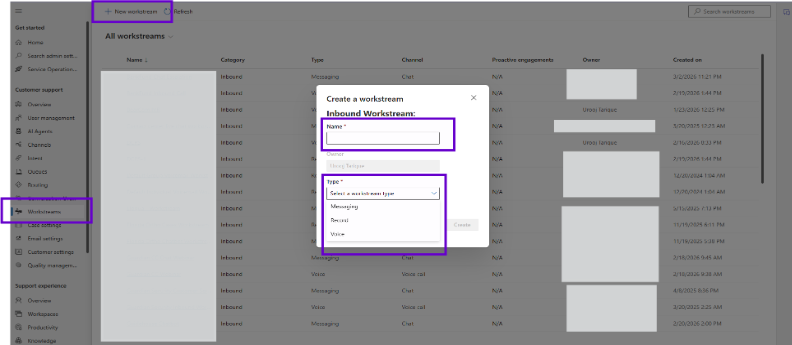
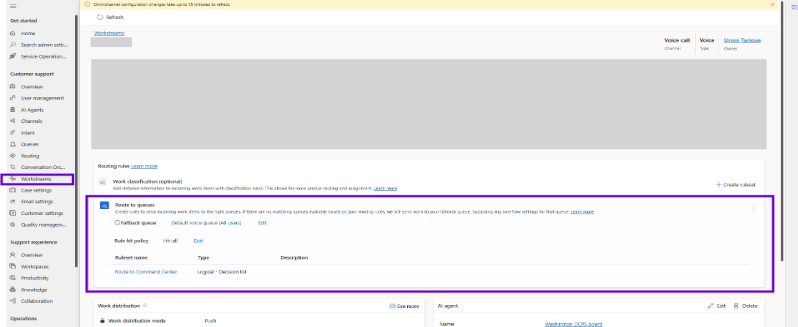
Navigate to the Copilot Service Admin Center and select Customer Support > Workstreams (
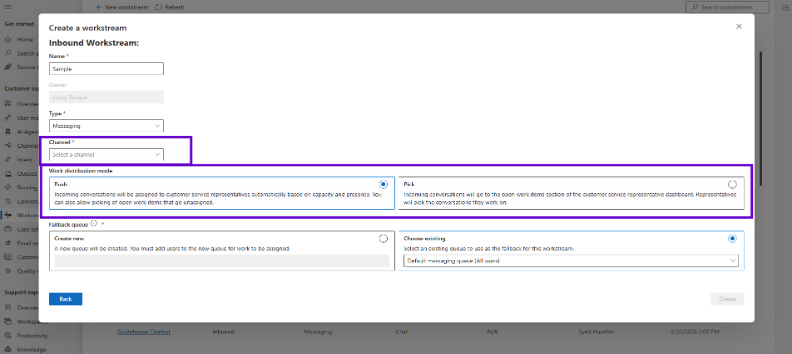
msdyn_liveworkstream) from the left nav. Create a new workstream for each channel you want to route (e.g., one for Cases, one for Live Chat).Configure the workstream type (Push vs. Pick). Push automatically assigns work to agents. Pick lets agents pull from a queue. For most service teams, Push is recommended.
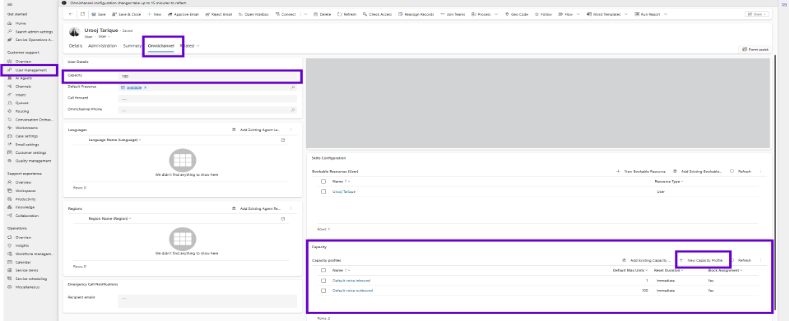
Set capacity profiles (
msdyn_capacityprofile) to define how much work each agent can carry simultaneously. For example, an agent might handle 3 cases and 1 live chat at a time. This prevents overloading.Add Classification Rules (
routingruleset) under the workstream. These rules inspect incoming work items and apply conditions—case priority, subject keywords, customer tier, channel—to tag them appropriately before routing.Create Queues (
queue) under Customer Support > Queues and map them to your workstream. Assign required skills (exact match or closest match) to ensure only qualified agents receive specific work types.Configure Assignment Rules (
msdyn_assignmentconfiguration) within each queue. Options include round-robin, most available, least active (recommended for messaging channels as of April 2025), or custom rule-based assignment.Enable Preferred Agent Routing if your service model benefits from relationship continuity. This routes returning customers to the last agent they spoke with, with a fallback if unavailable.
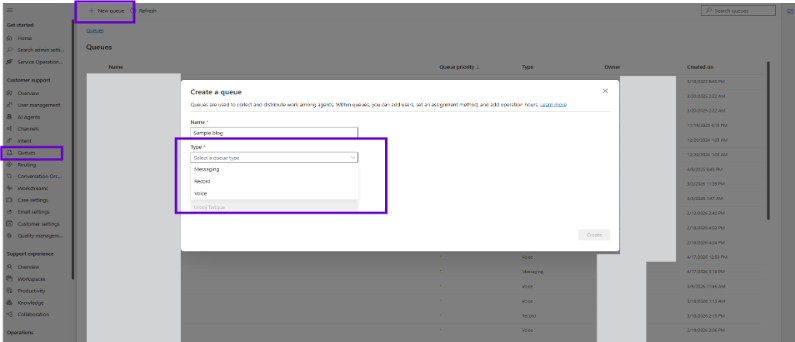
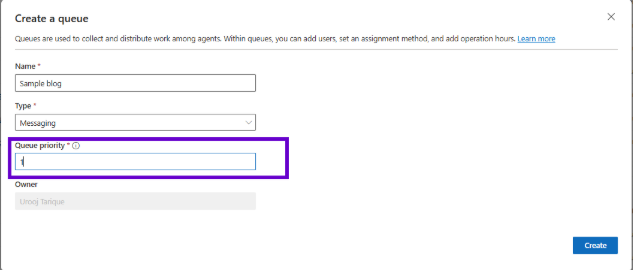
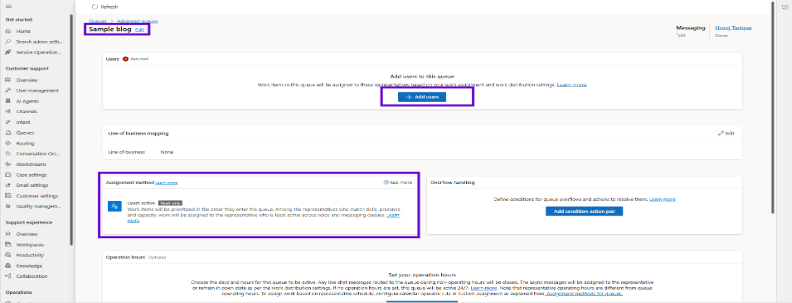
-
Part B: Configuring SLAs and KPIs
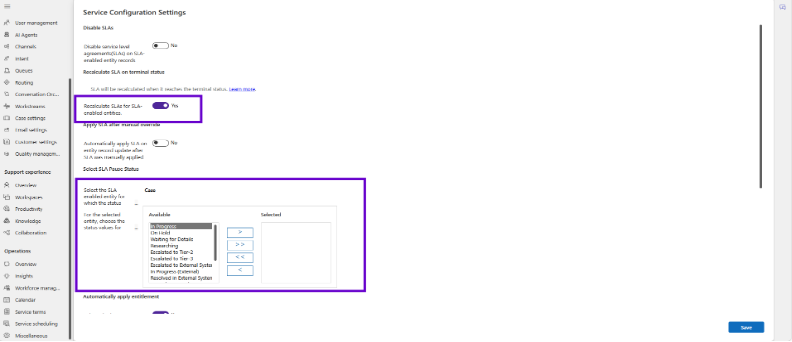
Go to Operations > Service Terms > Other SLA Settings. Set Recalculate SLAs on terminal status to Yes and select Case as the SLA-enabled entity. Define the status values that should pause the SLA clock (e.g., Waiting for Customer).
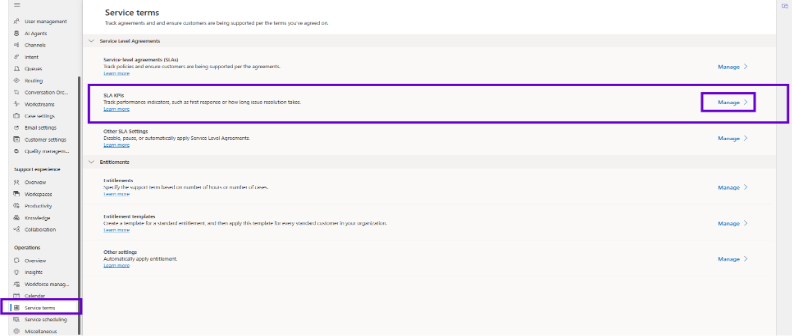
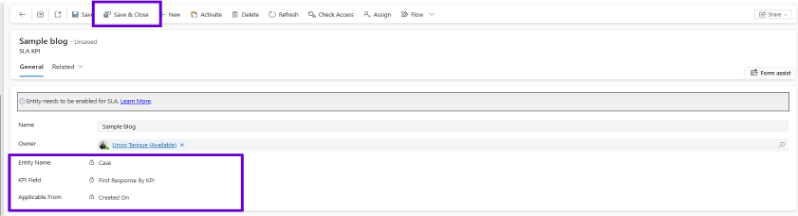
Navigate to SLA KPIs (
slakpiinstance) > Manage and create a new KPI. Set Entity Name to Case, select the KPI Field (FirstResponseByKPIfor first response,ResolveByKPIfor resolution), and set Applicable From to Created On. Activate the KPI.Go to Calendar > Customer Service Calendar and create a schedule that reflects your support hours. Attach your holiday calendar here so SLA timers respect non-working days.
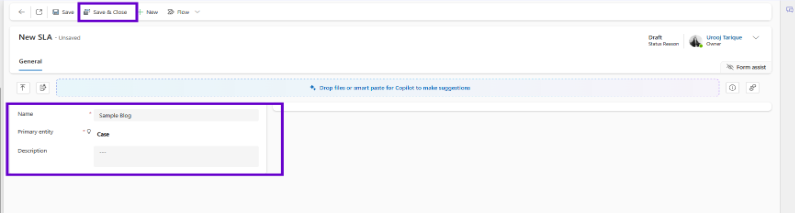
Navigate to Service-Level Agreements > New. Name your SLA, select Case as the primary entity, and set the Business Hours to your schedule.
Within the SLA (
sla), create SLA Items (slaitem). For each priority level (High, Normal, Low), create a separate SLA Item. Set: KPI field, Business Hours (calendar), Applicable When conditions (e.g., Priority equals High), Warning Time, and Failure Time.Click Configure Action on each SLA Item. This opens Power Automate. Add actions under Is Nearing Non-Compliance (e.g., send warning email or update a field) and Is Non-Compliant (e.g., escalate the case, notify a manager).
Activate the SLA and apply it as the default, or attach it via Entitlements to specific customer accounts.
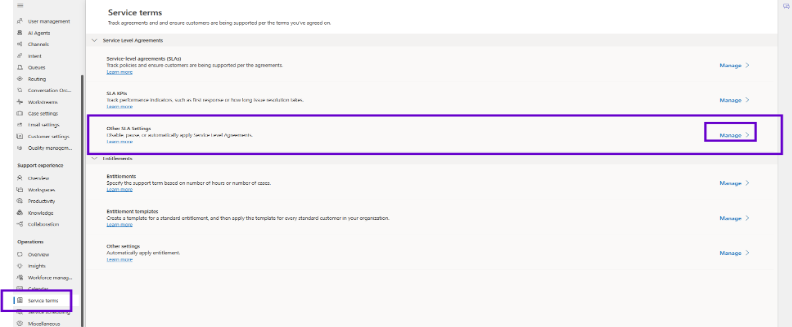
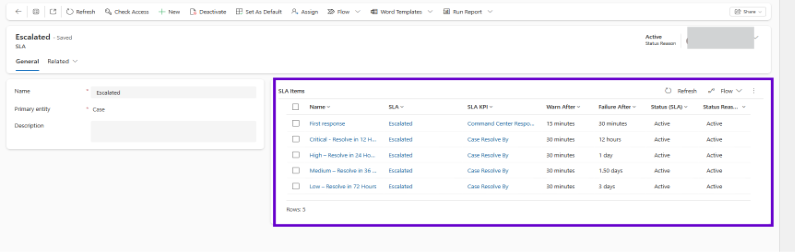
Tip: Keep SLA Items per SLA record to 15 or fewer. Microsoft recommends this cap to avoid performance degradation on case create/update operations.
4. Limitations & Best Practices
-
Known Limitations
SLA record routing capacity: Customer Service Enterprise includes 50 record routes per user per month. If your volume exceeds this, purchase Unified Routing add-on packs (10K records/month increments).
Standard SLAs can only be applied to the Case entity. For custom entities, you must use Enhanced SLAs configured through the Copilot Service Admin Center.
Presence sync across multiple D365 environments requires the new Presence Synchronization APIs (available as of April 2025)—this is not automatic out of the box.
SLAs imported via solution will be deactivated in the target environment and must be reactivated manually, one at a time through the UI. Keep SLAs in their own isolated solution to avoid this friction.
-
Best Practices
Shift-based Routing: Use shift plans in workforce management to prevent cases being assigned to agents outside their working hours. This reduces conversation rejections and customers' wait times.
Test SLA timers under load: Presence sync delays can occur during peak periods. Validate your warning thresholds give agents enough lead time to act before failure.
Use Least Active routing for messaging channels: As of April 2025, this method is available for chat and digital messaging and prevents back-to-back assignments, reducing agent burnout.
Returning conversation templates: Configure custom notification templates for returning persistent chats so the original agent is notified and given the chance to re-engage before reassignment.
Limit SLA Items per SLA to 15: Beyond this, case creation and update performance degrades.
Version your configuration changes: Keep routing rules and SLA records in managed solutions so changes can be tracked, tested in lower environments, and promoted to production safely.
5. Real-World Example
Consider a mid-market technology company running a 40-agent support team on Dynamics 365 Customer Service. Before implementing Unified Routing, supervisors were manually reviewing the general queue every 15 minutes to assign critical cases. SLA compliance hovered around 68%—not because agents were slow, but because high-priority cases weren't reaching the right agents fast enough.
After configuring Unified Routing with skill-based queues (Tier 1 General, Tier 2 Technical, Tier 3 Enterprise), classification rules that detect case priority and product area, and least-active assignment to balance load, the team saw routing happen within seconds of case creation. No supervisor intervention required.
SLA configuration was equally impactful. By setting up three-tier SLA Items (High: 1-hour first response / 4-hour resolution; Normal: 4-hour / 24-hour; Low: 24-hour / 72-hour) with Power Automate actions that notify the team lead at the 80% warning mark, SLA compliance climbed to 94% within the first month.
The supervisors, freed from queue babysitting, shifted their attention to coaching, using the real-time dashboards in the Customer Service workspace to spot sentiment trends and intervene proactively on escalating conversations.
Key outcome: Routing time from case creation to agent assignment dropped from an average of 18 minutes (manual) to under 30 seconds (automated). SLA compliance improved by 26 percentage points in the first month.
6. Key Takeaways & Resources
-
Key Takeaways
Unified Routing eliminates manual queue supervision by using AI classification and rule-based assignment across all channels—cases, chat, voice, and digital messaging.
SLA KPIs and SLA Items work together to define, measure, and enforce service commitments. Use priority-based SLA Items to apply different response/resolution thresholds to different customer tiers.
Least Active routing (extended to messaging channels in April 2025) is the recommended assignment method for balancing agent workload and reducing burnout.
Power Automate is the action engine behind SLA warnings and failures—invest time in building these flows well and your team will never be caught off guard by a breach.
Licensing matters: Enterprise gives you 50 record routes/user/month. If you're routing high volumes of non-interaction records, monitor your usage and plan for add-on packs.
-
Microsoft Learn Resources
Want to Go Deeper?
Imperium's team specializes in configuring Dynamics 365 Customer Service for complex service operations, from skill-based routing design to SLA governance frameworks. If your contact center is still routing manually or your SLA compliance isn't where it needs to be, reach out to explore what a targeted configuration engagement looks like.

Posted on: 22 July 2026