
Distribution teams keep client and pipeline data in Salesforce but often work in Microsoft 365, causing delays and low CRM adoption. With Microsoft 365 Copilot securely connected to Salesforce, AI insights appear directly in Outlook, Teams, and Copilot Chat, reducing context switching and helping sellers act faster with reliable CRM data
M365 Copilot on Salesforce
A Best-Practice Guide to Embedding AI Intelligence Across CRM and Microsoft 365
1. Context: Enabling AI-First, CRM-Driven Workflows
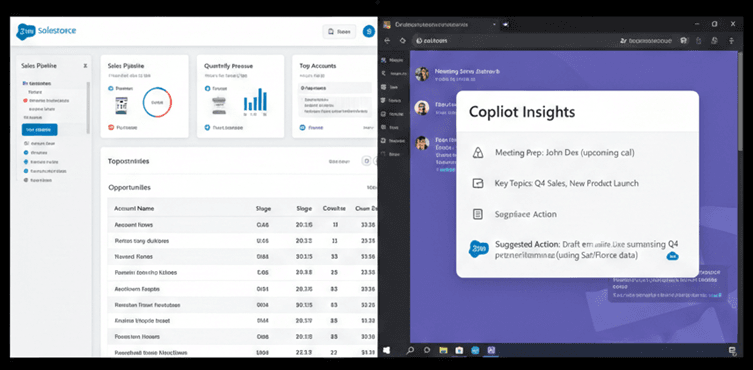
Across industries, distribution teams are under pressure to move faster, personalize conversations, and make decisions in real time. Traditional CRM systems were designed for record-keeping, not live reasoning during meetings, calls, or client interactions. As work increasingly happens inside collaboration and productivity tools, intelligence must shift from being application-bound to workflow-driven. AI copilots are emerging as the layer that connects systems of record with systems of work, ensuring insights are available at the moment decisions are made.
Modern distribution organizations operate across multiple systems. Salesforce remains in the system of record for accounts, leads, opportunities, and pipeline data. However, distribution execution happens almost entirely in Microsoft 365, emails in Outlook, meetings in Teams, and analysis in Excel and PowerPoint.
This creates a fundamental disconnect:
CRM data lives in Salesforce
Decisions are made in Microsoft 365
Sellers constantly switch tools to get context
As a result:
CRM insights are often checked after meetings, not during them
Data-driven guidance is reactive instead of proactive
Distribution teams underutilize CRM intelligence
Who this impacts (Business View):
Distribution Representatives who need quick context before and during client interactions
Distribution Managers who require real-time pipeline visibility
Distribution Leaders who depend on accurate forecasts and deal health
Operations Teams responsible for CRM adoption and data quality
Microsoft 365 Copilot changes this model. Instead of forcing users to go to the CRM, Copilot brings Salesforce intelligence directly into the tools sellers already use; making CRM data actionable now of work.
This guide explains how organizations can securely enable that capability and turn Salesforce from a static system of record into an active intelligence layer.
This guide provides a practical, enterprise-focused view of how organizations can enable Microsoft 365 and Microsoft 365 Copilot to securely reason over Salesforce CRM data. It covers:
The business problem created by fragmented CRM and productivity tools
How Salesforce and Microsoft 365 fit together in a modern distribution environment
The architecture used to connect Salesforce data to Copilot
How Copilot delivers contextual insights inside Outlook, Teams, and Microsoft 365
Security, governance, and permission considerations
Real-world adoption outcomes and best practices
The goal is to help organizations move beyond basic CRM integrations and unlock AI-driven distribution intelligence directly within their daily workflows.
2. Understanding the Salesforce + Microsoft 365 Landscape
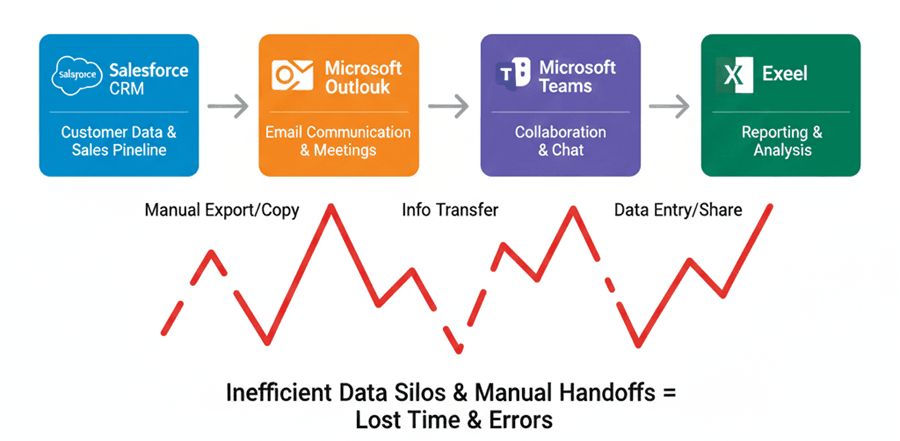
Salesforce is the main system where client and distribution data lives, such as accounts, leads, opportunities, and pipeline information. However, most day-to-day distribution work happens outside Salesforce.
In practice, this creates a split experience:
Salesforce is used to store CRM data and track the distribution pipeline
Outlook and Teams are used for emails, meetings, and collaboration
Excel and PowerPoint are used for forecasting, reporting, and analysis
Because of this separation, distribution teams constantly switch between tools.
Traditional CRM integrations only show Salesforce data in other tools. They do not explain the data, provide reasoning, or guide the user on what actions to take.
M365 Copilot solves this problem by acting as an AI layer across these systems. It allows users to ask questions in simple language and get meaningful, actionable insights directly inside the tools they already use, such as Outlook, Teams, Excel, and PowerPoint.
Instead of just showing data, Copilot helps users understand what the data means and what to do next.
This approach reduces context switching, increases CRM adoption, and helps distribution teams make faster, more informed decisions without leaving their daily workflow.
Callout Box: Common CRM Intelligence Challenges
- CRM data remains isolated inside Salesforce
- Users must manually navigate records during calls and meetings
Insights are reactive instead of proactive
Distribution teams rarely engage with CRM outside the Salesforce interface
2. Architecture & Setup Overview
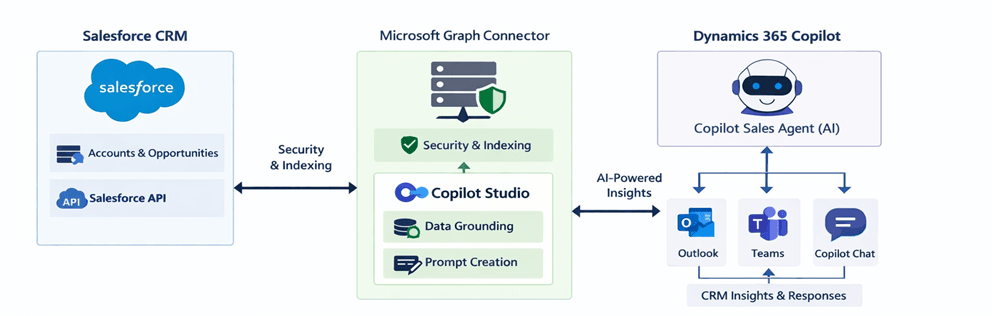
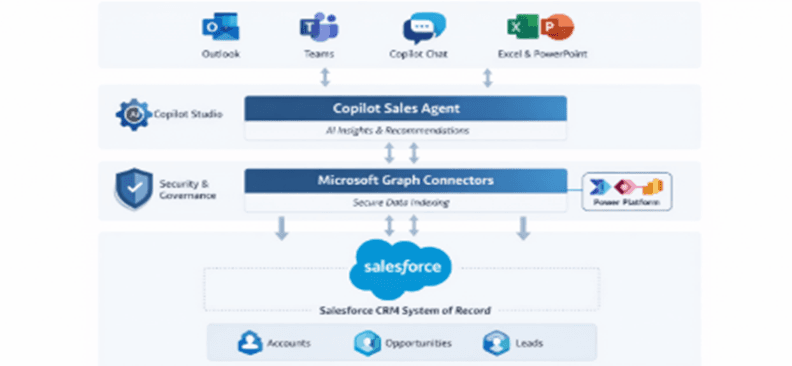
To bridge this gap, Microsoft 365 Copilot on Salesforce uses Microsoft Graph Connectors and Copilot Studio so that Salesforce CRM data can be securely indexed, grounded, and consumed by Copilot Distribution Agent inside Microsoft 365.
In this integrated architecture, Salesforce continues to be the authoritative system of record. The Graph Connector acts as the bridge that brings Salesforce data into the Microsoft Graph index, where Copilot can subsequently ground responses. Copilot Studio then configures and governs how Salesforce data is interpreted and surfaced in Microsoft 365 applications like Outlook, Teams, or Copilot Chat.
Here’s the high-level flow:
Salesforce data is first indexed through a Graph Connector, which respects user permissions and security trimming.
Copilot Studio then uses that indexed data to ground the Copilot Distribution Agent so that when a seller asks about opportunities or accounts in natural language, Copilot can fetch accurate Salesforce data and deliver insights inside Microsoft 365.
This way, sellers stay in their productivity tools without switching apps.
Prerequisites for this setup include:
Microsoft 365 Copilot license
Access to Copilot Studio
Salesforce API access with appropriate permissions
Admin roles within Microsoft 365.
3. Preparing for Copilot in Salesforce
Purpose:
Before using Copilot, it’s important to ensure your data is organized and up to date. This helps the AI give smarter recommendations and insights for your distribution and marketing teams.
Key Points:
- Make sure key client and distribution data is complete
- Keep your data current so AI suggestions are accurate
- Ensure your team has the right access to make the most of AI insights
4. Step-by-Step Implementation
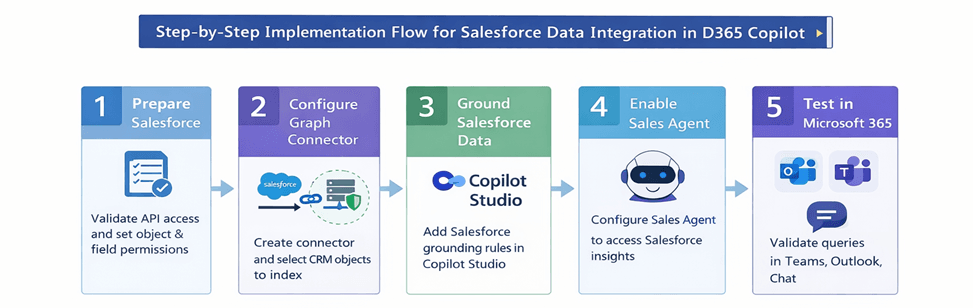
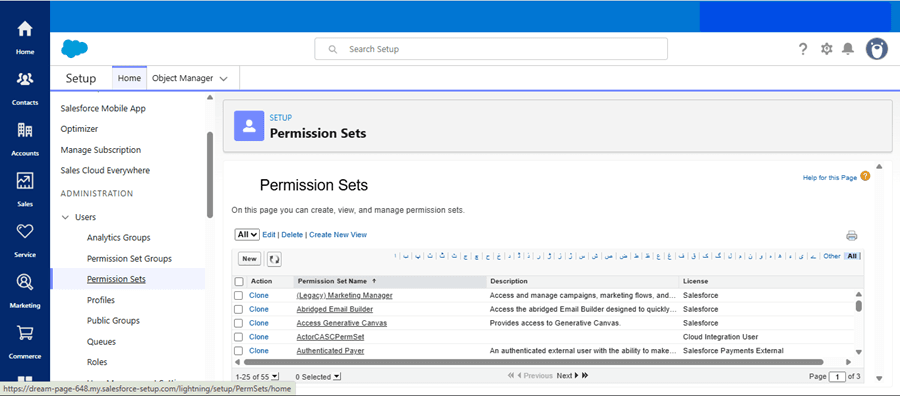
Step 1: Prepare Salesforce for Copilot Access
- Before integrating Salesforce with Copilot, ensure the Salesforce instance has API access enabled and that object and field-level permissions are set appropriately for the CRM objects you want to expose (e.g., Accounts, Leads, Opportunities).
- Users interacting with Copilot must have permission in Salesforce for the data they request.
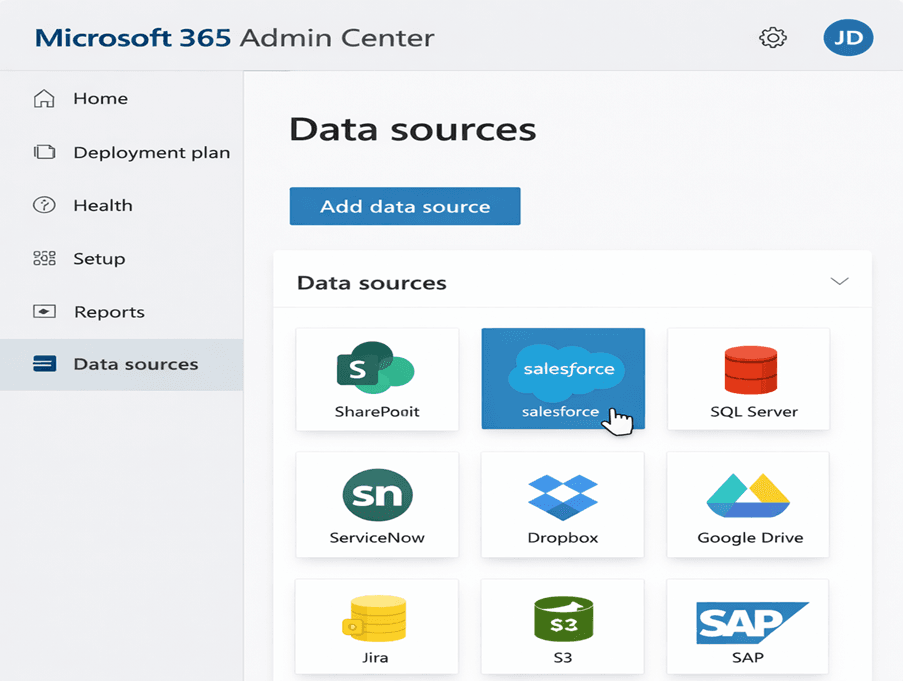
Step 2: Microsoft Graph (Copilot) Connectors
- Configure a connector to securely index Salesforce CRM data into Microsoft Graph.
- This enables key CRM objects, such as Accounts, Opportunities, Leads, and Contacts, to be discoverable and usable by Microsoft 365 Copilot.
- Once indexed, this data can be reasoned over and surfaced contextually within Microsoft 365 applications.
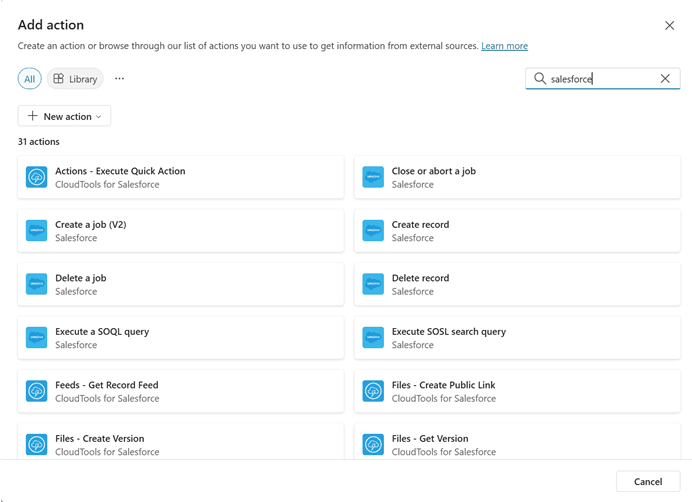
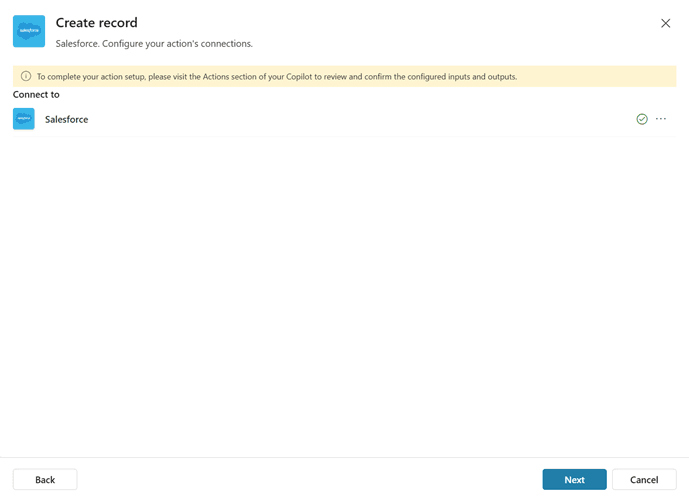
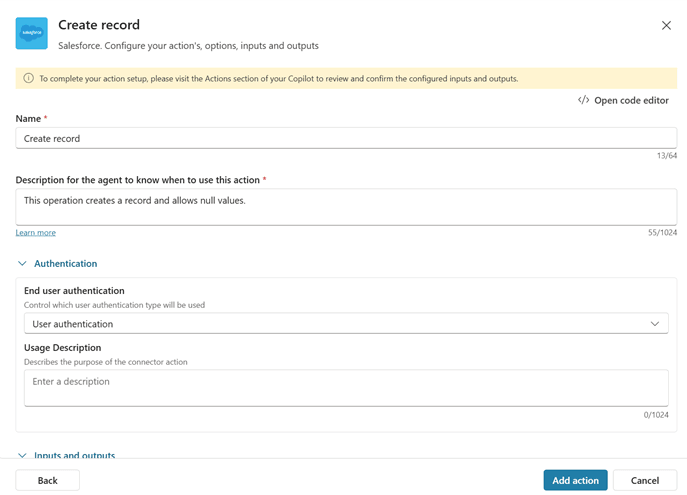
Step 3: Ground Salesforce Data in Copilot Studio
- Open Copilot Studio and add Salesforce as a knowledge source.
- Define grounding rules (which objects and fields Copilot should use) and scope (how responses should be framed).
- Validate that users can only access data based on their Salesforce permissions, ensuring secure and governed access.
Step 4: Enable Copilot Distribution Agent
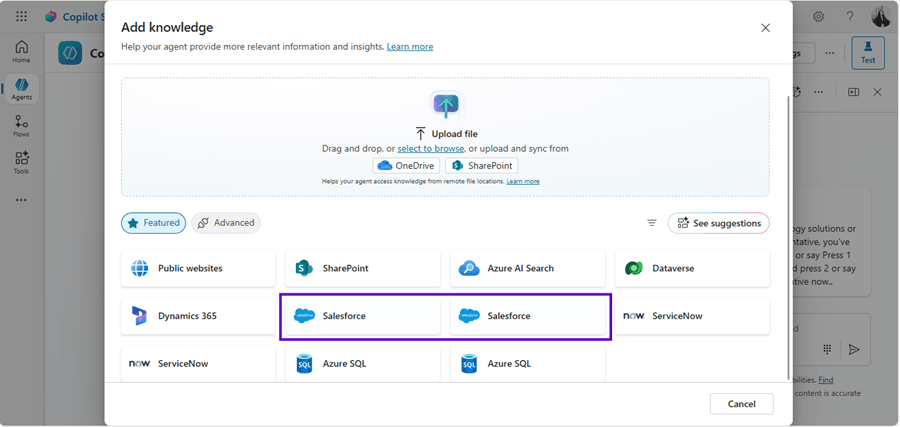
- Within Copilot Studio or the Microsoft 365 admin experience, configure a Distribution Agent that is instructed to use the grounded Salesforce data.
- Set behavioral boundaries and assignments so the agent works within Microsoft 365 apps.
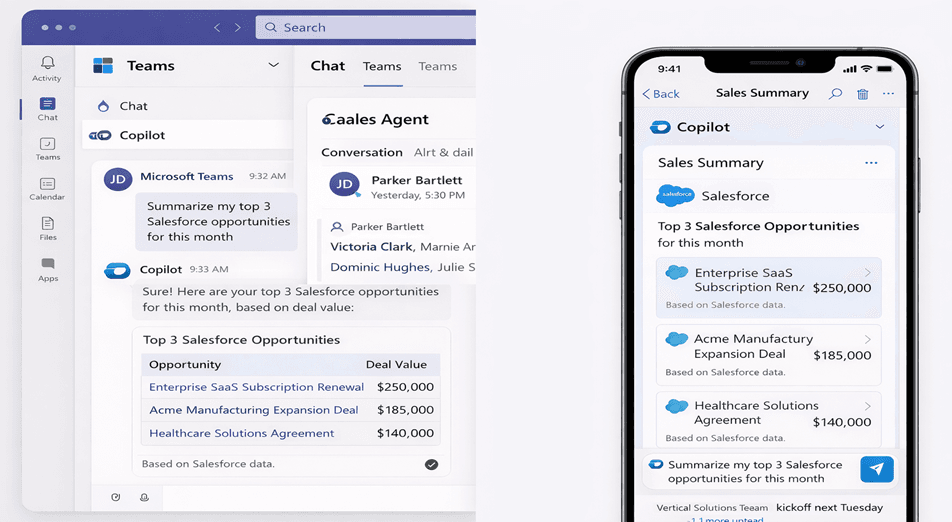
Example Copilot Prompts:
"Summarize my open opportunities closing this quarter."
"Prepare a briefing for my meeting with Contoso, including deals and recent activity."
"Which opportunities have not been updated in the last 14 days?"
Step 5: Test the Integration
After setup, test Copilot inside Teams, Outlook, or Copilot Chat using natural language prompts. Verify that the data returned matches Salesforce records and that permission settings are honored. Look for accuracy, security trimming, and acceptable latency.
5. Security, Compliance, and Governance Considerations
When integrating M365 Copilot with Salesforce, security and governance are critical. CRM data often contains sensitive information like client contacts, deal values, and strategic notes. Copilot must respect existing access controls and corporate policies to prevent accidental exposure.
Role-Based Access Control (RBAC)
Copilot follows the same role rules defined in Salesforce. This means:
A distribution rep only sees their own accounts and opportunities
A manager sees team data
Executives can access high-level summaries
For example, if a rep asks, “Show me my open deals this quarter,” Copilot will include only the deals they are authorized to view.
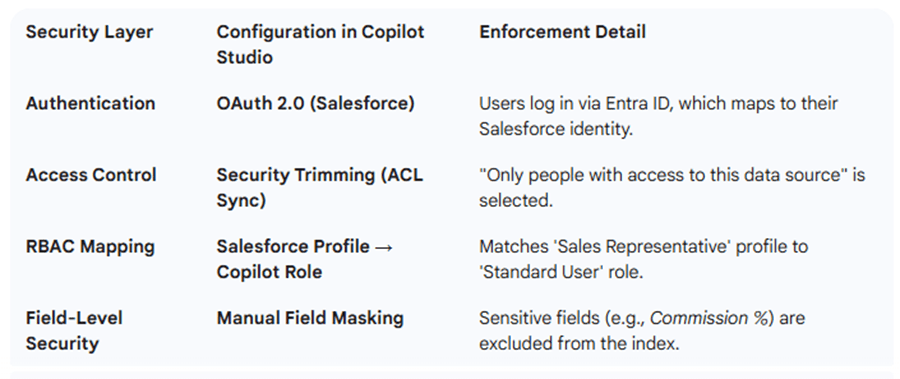
Tip: Regularly review Salesforce roles to keep Copilot access accurate.
Field-Level Security
Even within the same object, some fields may be sensitive, such as deal size or internal notes. Copilot respects field-level security, masking restricted fields in AI responses.
Example:
A rep asking, “Summarize my opportunities,” sees public info only
A manager sees revenue and risk details
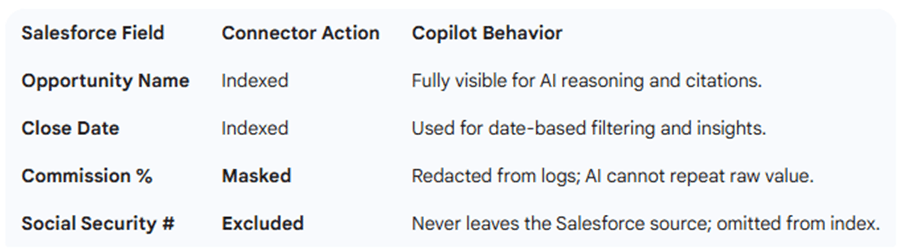
Tip: Identify sensitive fields upfront and ensure they are included in Copilot’s security rules.
User-Context Awareness
Copilot generates responses based on who is asking, so users cannot see data outside their permissions.
Example:
- A Europe-based rep asking about APAC deals will receive a message like: “You don’t have access to opportunities in APAC.”
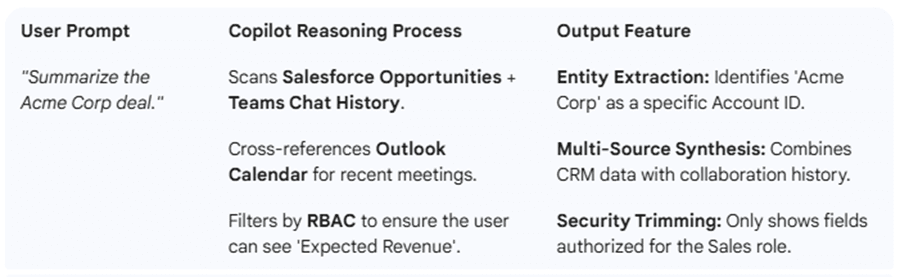
Tip: Periodically test AI responses to ensure context enforcement works correctly.
6. Adoption Strategy and Rollout Plan
Why It Matters:
Turning on Copilot is just the first step, getting your team to use it determines its real value. A thoughtful rollout helps distribution reps see Copilot as a helpful assistant, not something that replaces their work.
Step-by-Step Rollout:
- Start with Leadership and Power Users
Let distribution managers and top-performing reps try Copilot with real Salesforce data.
Collect feedback on AI answers, prompt accuracy, and ease of use.
- Test and Refine Prompts
Create example prompts for common tasks: preparing for meetings, summarizing pipelines, following up with clients.
Check how AI handles both simple and tricky questions.
- Train Your Distribution Team
Offer hands-on sessions or short videos showing how Copilot can save time and reduce repetitive work.
Teach best practices for asking questions and interpreting AI answers.
- Roll Out to Everyone
Gradually give access across all distribution teams and regions.
Monitor usage and provide support for questions or unexpected AI responses.
Tips for Success:
- Start small and focus on users who make the biggest impact.
- Emphasize time savings, like faster meeting prep or fewer clicks in Salesforce.
- Make it clear that Copilot helps but doesn’t make decisions for you.
- Encourage feedback to keep improving prompts and AI accuracy.
Callout Box: Adoption Tips
- Begin with leadership and managers
- Provide clear example prompts
- Show real-world benefits like meeting prep or email drafting
- Position Copilot as a personal AI assistant, not a replacement
9. Real-World Outcome: Imperium Dynamics — Enabling AI-Driven Distribution Intelligence
Background Problem: Fragmented CRM and Productivity Tools
Many enterprises today face the same core challenge: CRM and productivity systems are not fully connected in a way that supports intelligent decision-making. Salesforce often acts as the authoritative system of record for client and pipeline data, but most distribution execution happens in productivity tools like Outlook, Teams, Excel, and PowerPoint. This means:
CRM intelligence is isolated inside Salesforce
Sellers must context-switch to access critical insights
Distribution conversations occur without real-time context
Forecasting and pipeline analysis require manual exports or after-the-fact reports
Because Salesforce is not present in the flow of daily work, distribution teams underutilize CRM data and fail to unlock its value in the moments that matter. Traditional integrations only expose data; they do not provide reasoning, guidance, or contextual insights that empower distribution users to act intelligently in real time.
Imperium’s Solution: Enabling Copilot-Driven CRM Intelligence
Imperium Dynamics provides a structured framework and implementation approach that enables enterprises to bridge the gap between Salesforce and Microsoft 365 with AI that works within the flow of work:
1. Strategic Assessment and Architecture
Imperium begins with a deep business review to understand distribution processes, pain points, and data usage patterns. They then design an integration framework that brings Salesforce CRM data into the Microsoft ecosystem without duplicating or compromising security.
2. Power Platform and Copilot Integration
Using Microsoft Power Platform (including Power Automate, Power Apps, and Co-Pilot Studio), Imperium builds the connectors and analytics flows that surface CRM insights into everyday tools such as Outlook and Teams. This makes Salesforce data actionable where work happens.
3. AI-Enabled Workflows
Imperium leverages Microsoft 365 Copilot as the AI reasoning layer. Instead of simply showing CRM data, Copilot interprets it, summarizes key insights, and offers guidance in natural language — right inside the productivity tools sellers already use. For example:
Copilot can summarize a client’s Salesforce history before a meeting
It can highlight opportunities at risk or deal with high churn probability
It can generate meeting summaries and follow-up action items
This transforms Salesforce from a passive repository into a proactive intelligence engine that supports daily execution.
4. Governance and Security
Imperium ensures that all data access respects existing security policies and permissions in Salesforce. Their approach maintains enterprise compliance while enabling secure AI access to CRM intelligence.
5. Adoption and Change Management
Beyond technology, Imperium guides organizational adoption — providing training, usage frameworks, and best practices so that distribution teams actually use Copilot and see measurable gains.
Why Microsoft 365 Copilot?
Imperium chooses Microsoft 365 Copilot as the AI layer for several strategic reasons:
Seamless integration with core productivity tools — Outlook, Teams, Word, Excel, and PowerPoint are already where most distribution work happens; Copilot brings CRM intelligence directly into these workflows.
Contextual reasoning over business data — Copilot can not only retrieve Salesforce information but also interpret and summarize it in human language.
Built-in security and compliance — Because Copilot respects Microsoft and Salesforce security boundaries, enterprises can enable AI without exposing sensitive data.
Scalable across the organization — Imperium’s implementation approach ensures that Copilot-based insights can be rolled out enterprise-wide, not just within pilot groups.
10. Known Limitations
While Microsoft 365 Copilot for Salesforce is a powerful AI assistant, there are a few things to keep in mind:
- Data Freshness: The AI relies on data that is synced through Microsoft Graph Connectors. If the sync hasn’t run recently, Copilot may not reflect the very latest updates in Salesforce.
- Custom Objects: If your organization uses custom Salesforce objects, Copilot might need extra mapping or configuration to fully understand and work with that data.
- Large Datasets: Handling very large volumes of data can sometimes slow down AI responses, so some queries may take slightly longer to return insights.
11. Key Lessons and Best Practices
After several deployments, patterns emerge on what drives success with Copilot on Salesforce:
1. CRM Data Quality is Critical
- Copilot’s AI reasoning depends on accurate, complete data. Dirty or incomplete records will result in misleading insights.
2. Architecture-First Integration Wins
Grounding Salesforce data through Graph Connectors and Copilot Studio outperforms point-to-point solutions.
Avoid copying all data into Dataverse—focus on high-value objects.
3. Security and Governance Build Trust
Users adopt Copilot faster when they know sensitive data is protected
Enforce role-based and field-level security consistently
4. Prompt Training Accelerates Adoption
Provide users with ready-to-use prompts for meetings, pipeline analysis, and follow-ups
Encourage experimentation while maintaining compliance
Callout Box: Success Principles
Treat Copilot as an intelligence layer, not a replacement
Preserve Salesforce as the single source of truth
Invest in user enablement and training
Govern AI usage before scaling organization-wide
Official resources to get started:
https://learn.microsoft.com/en-us/microsoftsearch/salesforce-crm-admin-setup
https://learn.microsoft.com/en-us/microsoftsearch/salesforce-connector
https://learn.microsoft.com/en-us/microsoft-distribution-copilot/connect-agent-datasource
https://www.microsoft.com/en-us/dynamics-365/blog/content-type/news-and-product-updates/
https://learn.microsoft.com/en-us/microsoftsearch/salesforce-connector#limitations
https://dream-page-648.my.salesforce-setup.com/lightning/setup/PermSets/home
Transform Your Distribution Operations - Integrate Salesforce with Copilot for Microsoft 365


Syed Huzefah |

Posted on: 25 February 2026