
A practical decision guide for Dynamics 365 Customer Insights users choosing between Custom Forms and Form Capture, covering use cases, technical considerations, and best practices for marketing data collection.
-
Product Area:
Dynamics 365 Customer Insights
Power Platform
Marketing Automation
-
Tags / Keywords:
D365
Dynamics 365
Customer Insights
Marketing Forms
Custom Forms
Form Capture
Power Platform
Lead Generation
Marketing Automation
Microsoft Marketing
Real-Time Marketing
Customer Data
Form Embedding
Third-Party Forms
Marketing Pages
Consent Management
A Decision Guide for Marketing Teams and D365 Practitioners
1. Introduction: Forms at the Heart of Marketing
In today's data-driven marketing landscape, capturing accurate and timely customer information is foundational to every successful campaign. Dynamics 365 Customer Insights - Journeys (formerly Dynamics 365 Marketing) offers two primary methods to accomplish this: Custom Forms and Form Capture. Both serve the purpose of collecting customer data, but they work differently and excel in different scenarios.
Choosing between them is not simply a technical decision. It reflects how your organization manages its web presence, where your data flows, and how your marketing and IT teams collaborate. This guide provides a clear framework for understanding each option and determining which is right for your business needs.
What This Guide Covers
The difference between Custom Forms and Form Capture in D365 Customer Insights
Use case scenarios for each approach
-
Technical and business considerations
What Changed Recently
Form Capture capabilities continue to evolve, including support for creating or updating consent-related records.
Native forms support modern publishing options such as JavaScript embedding and standalone hosted pages.
Form Capture has analytics limitations compared with native forms because form visit events and web tracking are not collected in the same way.
If a form can be recreated in Customer Insights - Journeys, native forms are typically the preferred option.
Microsoft Power Platform best practices for marketing data collection
2. Understanding the Two Approaches
Before comparing the two methods, it is important to understand what each one does and how it integrates with Dynamics 365 Customer Insights - Journeys.
-
Custom Forms (Native D365 Forms)
Custom Forms are built natively within the Dynamics 365 Customer Insights - Journeys application. Marketers design and publish forms directly from the D365 interface, and submissions flow automatically into Dynamics 365 as leads or contacts. These forms can be published using Microsoft's supported hosting options, including JavaScript embedding on external websites and standalone hosted pages.
-
Form Capture (Third-Party Form Integration)
Form Capture is a feature that allows organizations to connect existing web forms—built with tools like WordPress, HubSpot, Marketo, or custom HTML—to Dynamics 365 Customer Insights. Rather than replacing those forms, Form Capture maps submission data to D365 fields and triggers marketing journeys upon submission.
Key Differences at a Glance
Custom Forms: Built and managed within D365; submissions go directly to CRM
Form Capture: Works with existing third-party forms; maps external data into D365
Custom Forms: Best for teams building new marketing pages from scratch
Form Capture: Best for organizations with established web properties and form tooling
3. When to Use Custom Forms
Custom Forms are the preferred choice when your team wants full control over the form lifecycle within the Dynamics 365 ecosystem. They are ideal for the following scenarios:
New marketing campaigns or microsites where no prior form infrastructure exists
Organizations standardizing on the Microsoft Stack, leveraging Power Pages or D365 Marketing Pages for web presence
Marketing teams who need built-in consent management aligned with GDPR or CCPA requirements
Scenarios requiring direct journey triggers where form submission must instantly enroll a contact into a real-time marketing journey
Teams with limited web development resources who prefer a no-code/low-code experience
Custom Forms provide the tightest integration with D365, including automatic contact/lead creation, duplicate detection rules, and direct event triggers for journey orchestration. They also support rich validation, hidden fields, theming, and centralized form management.
Custom Forms - Best Fit Scenarios
New campaigns without legacy form dependencies
Full Microsoft ecosystem deployments (Power Pages, SharePoint)
Compliance-first marketing with built-in consent management
No-code marketing team workflows
4. When to Use Form Capture
Form Capture is the right tool when an organization already has web forms in production and does not want to replace or disrupt that existing infrastructure. Common scenarios include:
Enterprise websites built on CMS platforms such as WordPress, Drupal, or Sitecore, where forms are managed by a web team
Organizations with existing marketing automation tools like Marketo or HubSpot that feed into Dynamics 365 as a CRM
Advanced custom form experiences requiring HTML/JavaScript functionality that D365 native forms do not support
Multi-brand or multi-regional organizations where different business units own their own web properties
Migration scenarios where a legacy form system needs to continue operating while a D365 transition is underway
Form Capture works by injecting a JavaScript snippet into the target web page. When a user submits the existing form, the snippet intercepts the submission, maps the fields to D365 attributes, and sends the data to Customer Insights. This approach preserves the user experience on the frontend while connecting it to the CRM backend.
Form Capture - Best Fit Scenarios
Existing web forms managed by IT or a separate web team
Third-party CMS platforms with established form workflows
Hybrid marketing technology environments
Migration and coexistence scenarios
5. Technical Considerations and Limitations
Understanding the technical boundaries of each approach is essential for making an informed decision. Below are key considerations for both methods.
-
Custom Forms - Technical Notes
Hosting Flexibility: Custom Forms can be hosted on D365 Marketing Pages, Power Pages, embedded using Microsoft's JavaScript-based publishing options, or published as standalone hosted pages. These approaches generally provide greater flexibility and alignment with current Microsoft guidance than relying solely on iframe-based embedding.
Consent Compliance: Built-in double opt-in and consent purpose tracking align with Microsoft's compliance framework. Consent records are created automatically in D365.
Performance: Forms served through Microsoft-hosted infrastructure benefit from CDN-backed delivery designed for high availability and fast load times, although end-user performance can still vary by region and network conditions.
-
Form Capture - Technical Notes
Script Dependency: Form Capture requires a JavaScript snippet added to the target page. Changes to the form's HTML structure can break field mappings and require reconfiguration.
Field Mapping Complexity: Mapping third-party form fields to D365 attributes requires careful alignment, especially for custom fields, picklists, and multi-select options.
Consent Handling: Form Capture can create or update contact point consent records and related consent purposes or topics when configured appropriately. However, organizations should validate consent design against their compliance requirements and the user experience of the external form.
Duplicate Management: Since data arrives via an external channel, D365 duplicate detection rules may need additional tuning to prevent redundant lead or contact records.
Technical Considerations Summary
Custom Forms: Tighter CRM integration, native consent capabilities, flexible publishing options
Form Capture: Script-dependent, requires field mapping maintenance, and consent design should be validated
Both approaches support real-time journey triggers when configured correctly
Power Automate can extend both methods with custom processing logic
6. Data Quality and Journey Orchestration
Regardless of which form method is used, data quality is paramount. Poorly structured submissions lead to incomplete contact records, broken journeys, and inaccurate marketing analytics.
Custom Forms enforce field validation natively within the D365 interface, reducing the risk of malformed data entering the CRM. Required fields, format validation (such as email and phone), and lookup field constraints are all configurable at the form level.
Form Capture, by contrast, relies on the validation logic built into the third-party form. If the source form does not enforce proper validation, the data reaching D365 may be inconsistent. A recommended practice is to layer a Power Automate cloud flow on top of Form Capture submissions to cleanse and validate incoming data before it updates the CRM record. A key limitation is that form visit events and web tracking are not available in the same way as with native Customer Insights forms.
For journey orchestration, Custom Forms have a built-in advantage: submissions can directly trigger real-time marketing journeys without additional configuration. Form Capture submissions can also trigger journeys, but this typically requires an additional step, such as updating a specific field that the journey monitors as a trigger condition.
Data Quality and Orchestration Best Practices
Custom Forms: Use native field validation rules and consent tracking
Form Capture: Add Power Automate flows to cleanse and enrich incoming data
Both methods: Define clear duplicate detection strategies in D365
Real-time journey triggers may require additional configuration for Form Capture submissions
7. A Side-by-Side Comparison
The following comparison summarizes the key characteristics of each approach to help teams make an informed decision:
-
Ownership and Management
Custom Forms are owned and managed entirely within Dynamics 365 by the marketing team. Form Capture requires coordination between marketing and the web/IT team that manages the external form.
-
Time to Implement
Custom Forms can be created and published in hours using the D365 form designer. Form Capture setup varies based on form complexity and the number of fields to map, typically requiring one to three days for initial configuration.
-
Maintenance Overhead
Custom Forms have low maintenance overhead since changes are made within D365. Form Capture configurations must be updated whenever the source form changes, adding ongoing maintenance responsibility.
-
Compliance and Consent
Custom Forms provide native compliance features including double opt-in and consent purpose tracking. Form Capture can also participate in consent management, but organizations should review configuration, governance, and compliance requirements carefully when using external forms.
Decision Checklist
Do you have existing web forms you cannot replace? → Consider Form Capture
Are you building new marketing pages from scratch? → Use Custom Forms
Do you need built-in consent management? → Custom Forms are the stronger choice
Does your team manage a third-party CMS? → Form Capture provides the smoother integration
8. Hybrid Approaches and Advanced Scenarios
In practice, many organizations use both approaches simultaneously. A common pattern is to deploy Custom Forms for new campaign landing pages built on Power Pages, while using Form Capture to integrate legacy or third-party forms that remain in operation during a phased migration to the Microsoft ecosystem.
Power Automate plays an important bridging role in hybrid scenarios. Cloud flows can intercept submissions from either source, apply consistent data transformations, trigger notifications, and update related records in Dataverse. This creates a unified data processing layer regardless of where the form submission originates.
For organizations pursuing a long-term standardization strategy, a phased approach is recommended: begin with Form Capture to capture data from existing web properties without disruption, then progressively replace high-value forms with Custom Forms as marketing pages are rebuilt on Power Pages or D365 Marketing Pages. This approach balances immediacy with long-term architectural alignment.
Hybrid Strategy Recommendations
Use Form Capture for existing web properties during migration periods
Use Custom Forms for all new campaigns and landing pages
Use Power Automate to standardize data processing across both form types
Plan a phased migration to Custom Forms as your web presence modernizes
9. Key Lessons and Best Practices
Organizations that successfully leverage Dynamics 365 Customer Insights form capabilities share several common practices:
Start with the end goal in mind: Define what data needs to flow into D365 and how it will be used in journeys before choosing a form method.
Involve IT early: Form Capture in particular requires web team collaboration. Align on ownership before implementation begins.
Prioritize consent compliance: Whether using Custom Forms or Form Capture, consent records must be captured and stored in compliance with applicable regulations.
Test field mappings thoroughly: For Form Capture deployments, test all field mappings across different browsers and devices before going live.
Monitor and maintain actively: Set up alerts for failed submissions in both approaches. Form Capture in particular can silently fail if source form HTML changes without updating mappings.
Success Principles
Goal-first form strategy aligned to CRM data requirements
Cross-team collaboration between marketing and IT
Consent compliance built into the form design process
Ongoing monitoring and maintenance for Form Capture deployments
10. Step-by-Step Setup Guide and Microsoft References
The steps below walk through configuring each option inside Dynamics 365 Customer Insights - Journeys, matched to the official Microsoft Learn article that documents the current process. Screenshot references from Microsoft's documentation are linked rather than reproduced here, since they are Microsoft's copyrighted material; live screenshots captured from the Imperium Dynamics or client tenant should be used for the published version of this blog.
-
Setting Up Custom Forms
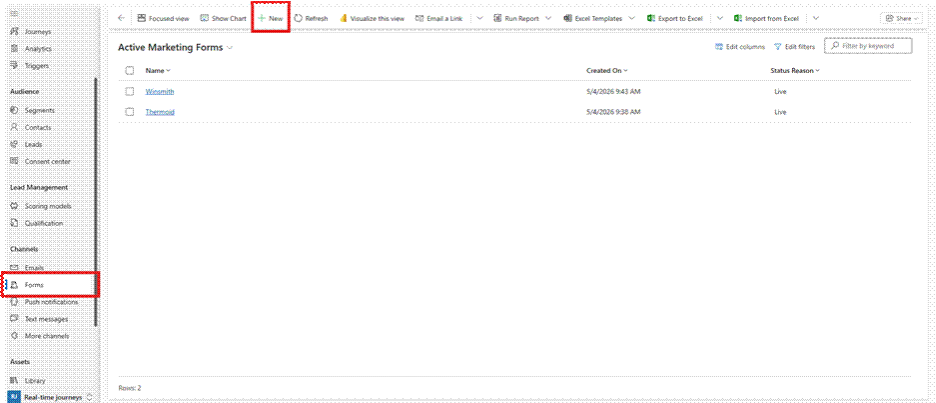
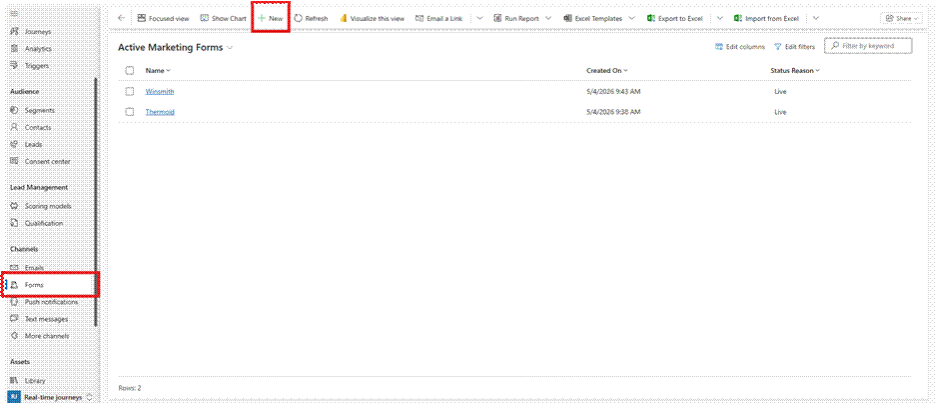
Go to Customer Insights - Journeys > Channels > Forms and select New on the command bar. (For an event registration form, use the Form tab of the event instead.)
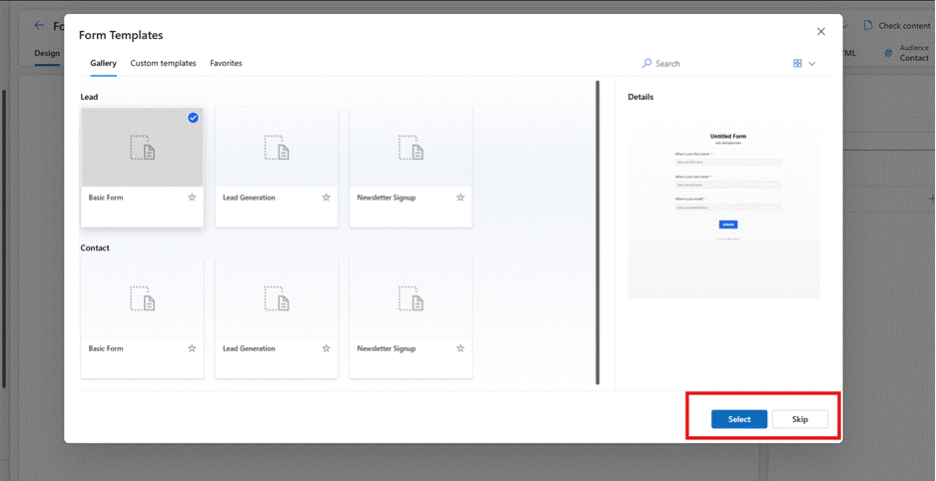
Choose a template, or skip to start from a blank form, then enter the form editor.
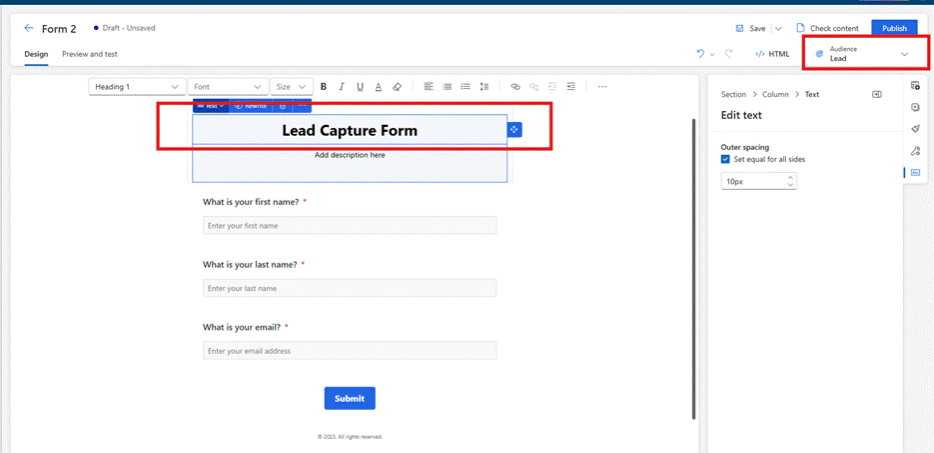
Check the target audience in the top-right corner and name the form. Choose Contact, Lead, or Lead & Contact—each has a different default duplicate-handling rule that can be adjusted later in form settings.
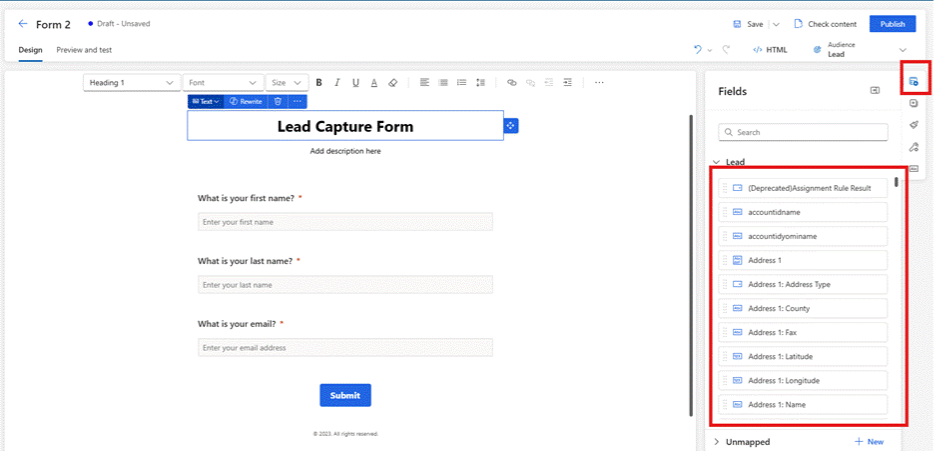
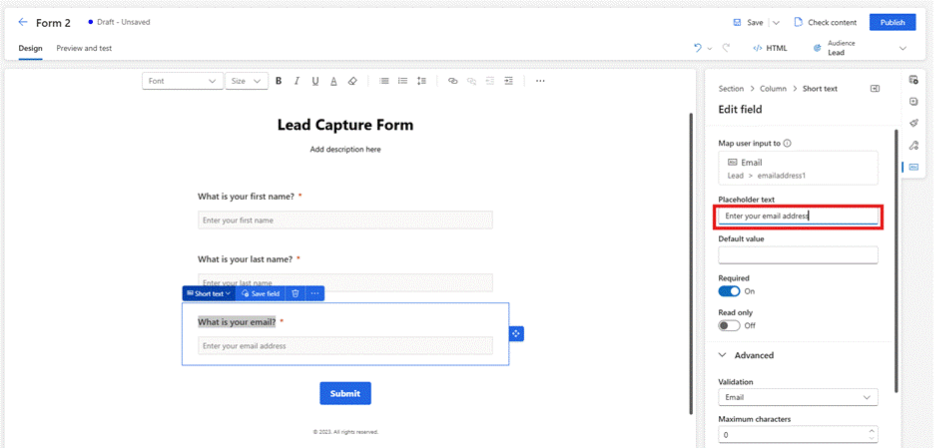
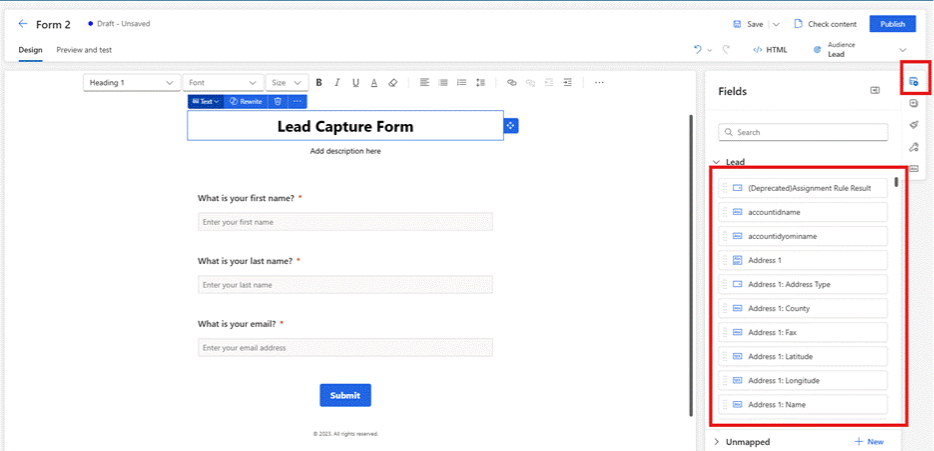
Search the Fields panel on the right and drag the fields you need onto the form canvas. Selecting a field opens its properties, where required status, validation, and other behavior can be configured.
Edit field labels directly on the canvas and set placeholder or default text in the right-hand pane.
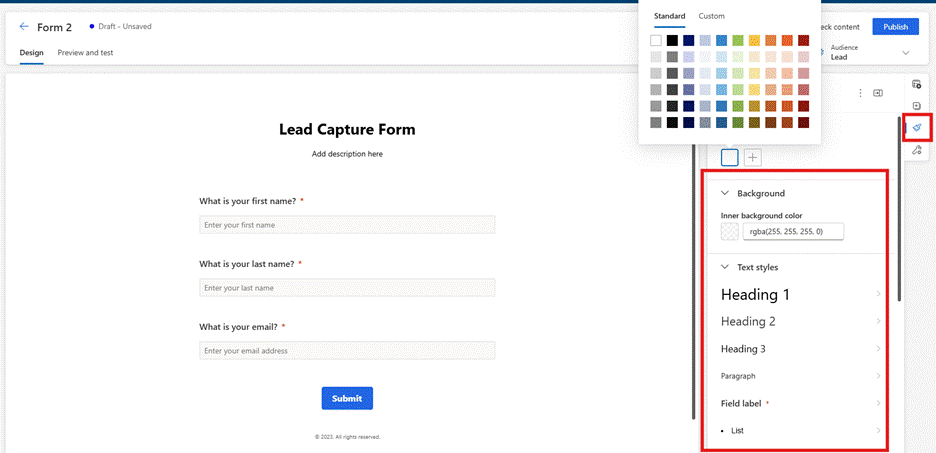
Open the Theme section (brush icon) to style input fields consistently across the form.
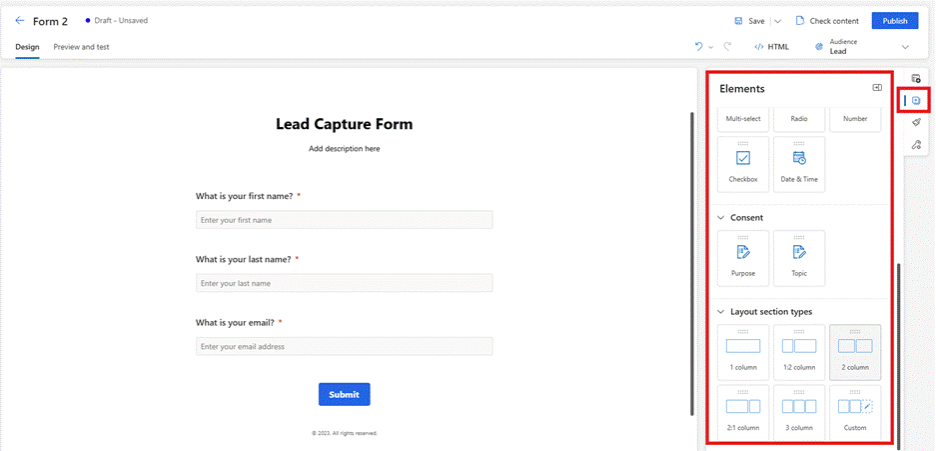
For multi-column layouts, switch to the Elements panel and drag a column layout onto the canvas to create new sections.
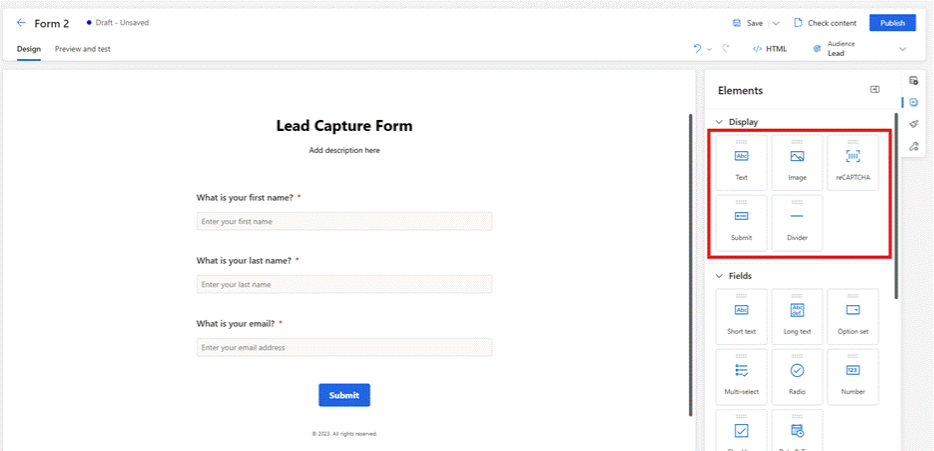
From the Elements panel, add static text, a Submit button, reCAPTCHA, or images. A Submit button is required before the form can be published.
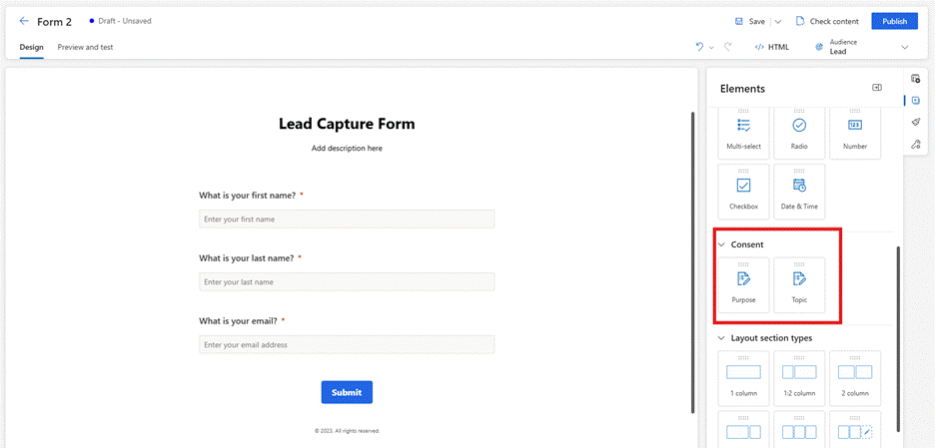
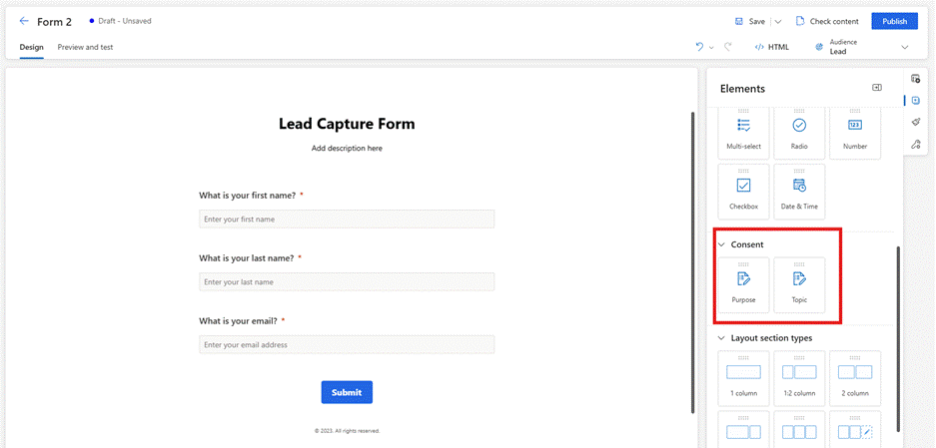
Add a consent control from the Elements panel and assign it the correct consent purpose so opt-in records are created automatically.
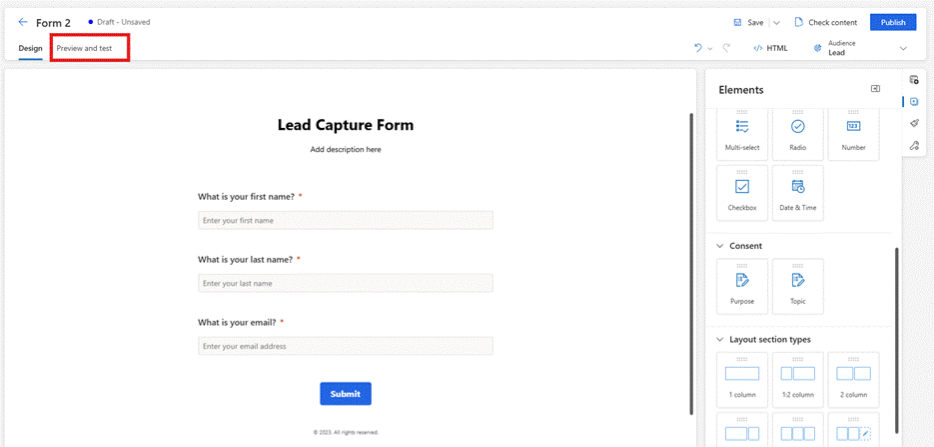
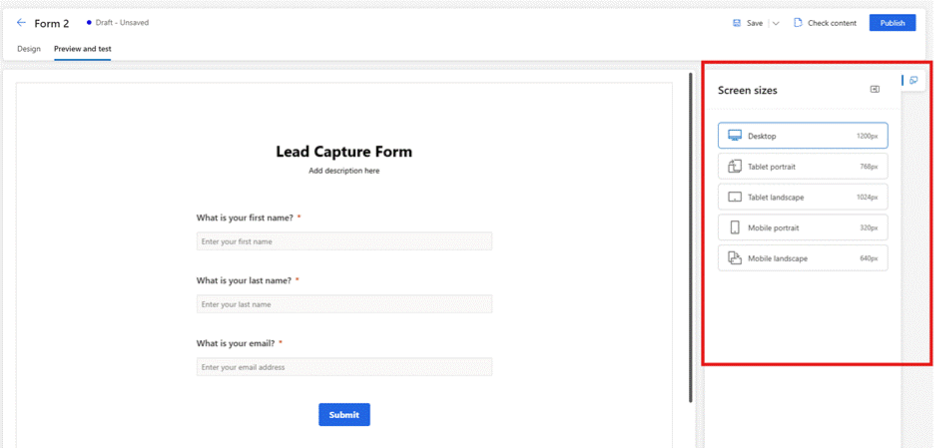
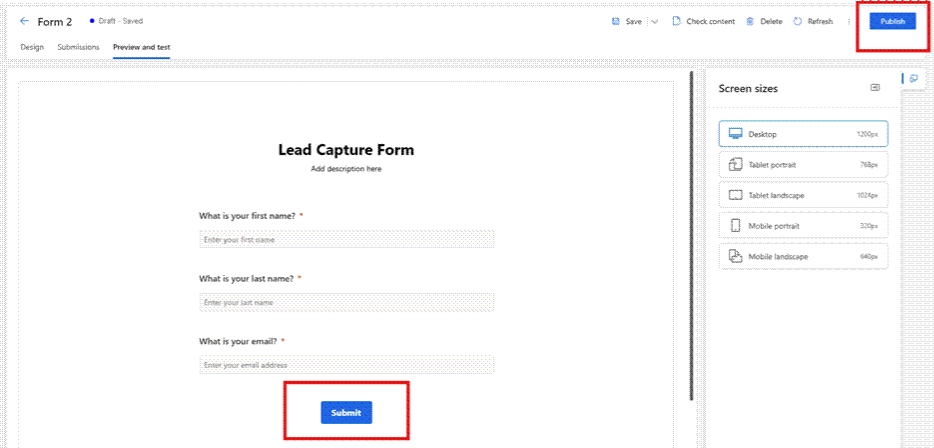
Use the Preview and test tab to check how the form renders on desktop, tablet, and mobile.
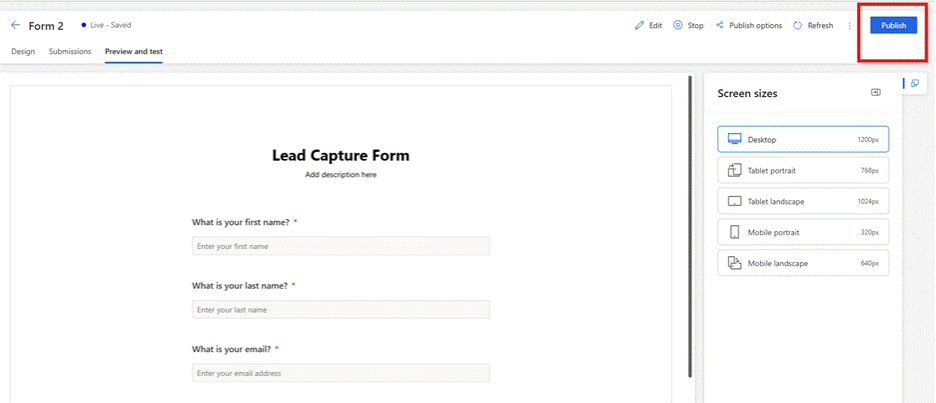
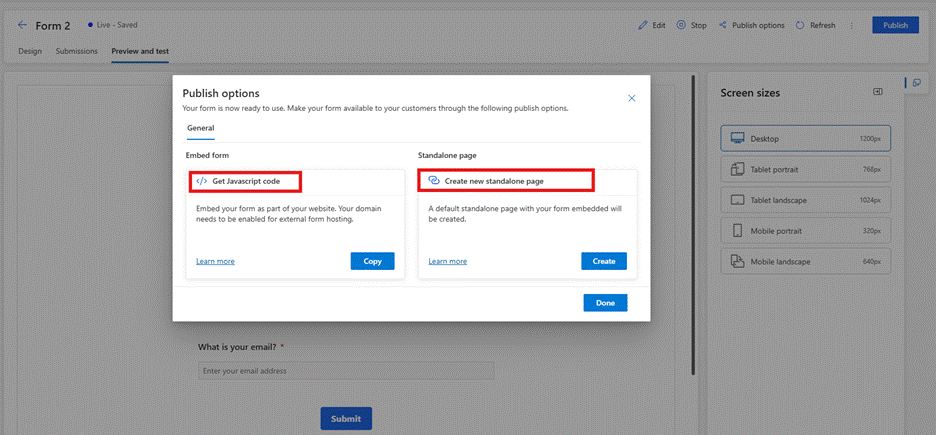
Select Publish. Choose to embed the form using a JavaScript snippet or generate a standalone hosted page. Before publishing, confirm the target domain is authenticated for external form hosting, or submissions will be rejected.
-
Setting Up Form Capture
Form Capture is disabled by default and Microsoft notes it typically requires developer assistance, since it involves embedding and adjusting a JavaScript snippet on an existing page. It also requires the DynamicsMKT_Forms solution at version 1.1.35355 or higher.
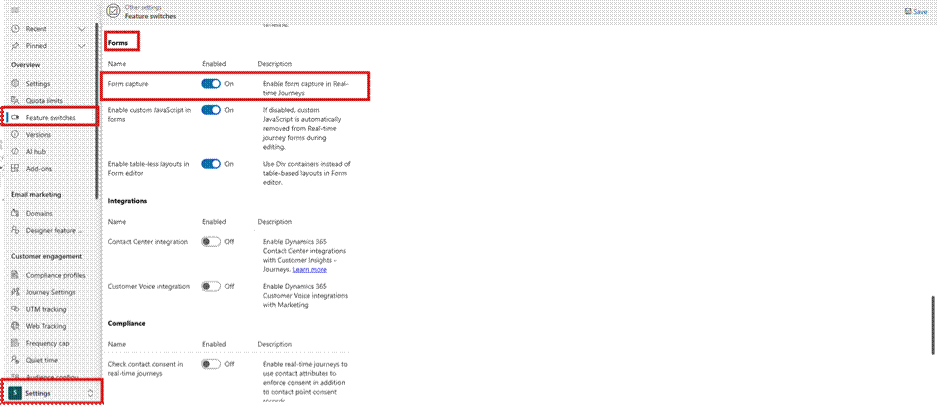
Enable the feature switch under Settings > Feature switches > Forms by turning on Form capture.
Go to Channels > Forms > New to create the form shell that will define the mapping. Name it and select the target audience/entity that matches the fields on the live third-party form.
Add the fields that should map to the existing form's fields. This generates the mapping placeholders used later in the capture script; a field left out of this form editor step won't update the contact or lead record even if it's mapped in code.
Add and configure consent elements (Purpose/Topic) directly in the form editor—consent mappings can't be changed later inside the capture script itself.
Add a Submit button (required for validation) and select Publish.
Copy the generated form capture script from the publish dialog. Confirm the domain hosting the existing form is authenticated for external form hosting, or submissions won't be captured.
Hand the script to a developer to embed on the existing page. The embedded script needs to: (a) get a reference to the existing form element, (b) map form fields to Dataverse attributes, (c) map consent fields to the consent model, and (d) submit the serialized payload on form submit.
Test end-to-end. Common issues are CORS errors from an unauthenticated domain, and submissions being dropped when the page redirects immediately after submit—calling
event.preventDefault()and redirecting only after the submission promise resolves avoids the latter.
11. Conclusion: Choosing the Right Tool for the Right Context
Dynamics 365 Customer Insights provides powerful flexibility through both Custom Forms and Form Capture. The right choice depends on your organization's existing infrastructure, team capabilities, compliance requirements, and long-term platform strategy.
Custom Forms offer the deepest integration with the Microsoft ecosystem and are generally the recommended approach when a form can be recreated in Customer Insights - Journeys. Form Capture provides a pragmatic bridge for organizations with established web properties, enabling them to connect existing forms to D365 without disrupting the user experience or web operations.
With thoughtful planning, a clear understanding of data requirements, and the right Power Automate automation in place, both approaches can deliver high-quality marketing data and reliable journey orchestration. Imperium Dynamics helps organizations evaluate their unique context and implement the form strategy that best supports their marketing operations and business goals.
Final Recommendation Summary
Custom Forms: Best for new builds, Microsoft-first strategies, and compliance-driven organizations
Form Capture: Best for existing web ecosystems, hybrid environments, and migration scenarios
Both: Enhanced by Power Automate for data processing and journey trigger management
Imperium Dynamics: Your Microsoft partner for Power Platform and D365 marketing implementations

Fatima Ahmed |

Posted on: 26 July 2026